Monitor site security, safety and operations with theeye
Configure detection on your existing cameras and review alerts with evidence. Restaurant operations can also connect to the POS.
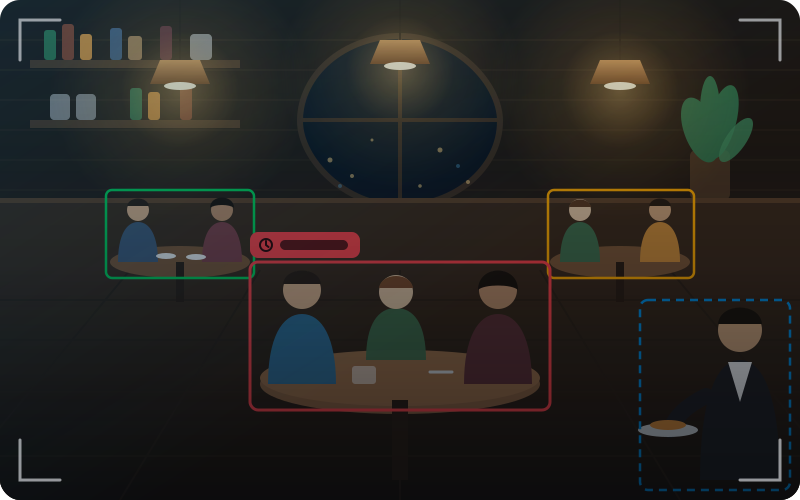 LIVE
Table 7 · not served yet
5:12
Waiter on the way
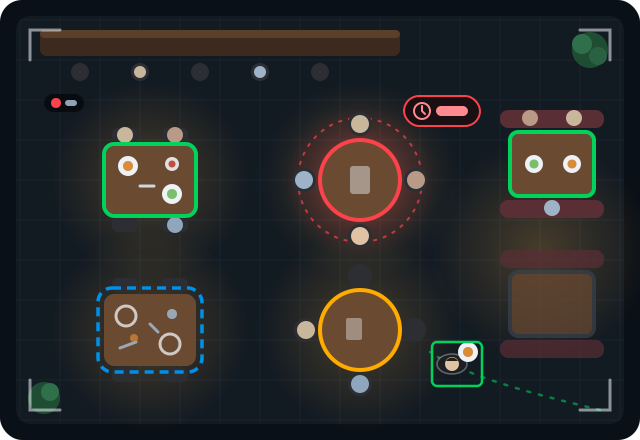
Table service
Every table the cameras cover is followed from the moment guests sit down: seated, not served, served, needs clearing. When a wait passes the warning limit and then the critical limit, the floor team is alerted.
-
Seated but not served A timer starts when guests sit down. By default it warns after 3 minutes and turns critical after 5; both limits can be changed.
-
Waiter visits Each visit to a table is counted, so you can see which tables were checked on and how often. A waiter seen by a camera stays anonymous; a name comes only from the tablet check-in or the POS.
-
Tables to clear Tables left with plates after guests leave are flagged, so they can be reset and offered to the next party sooner.
-
Live floor board One live view of every table with its state and waiting time, in the same colours as the alerts.
Kitchen food safety
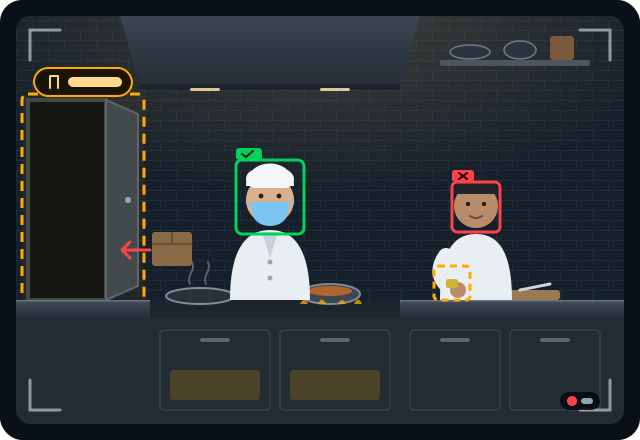
Food-safety rules are checked continuously on the kitchen cameras. Each breach becomes a case with a snapshot that a manager can review and confirm or dismiss.
-
Masks Staff handling food without a mask, or wearing it only partly.
-
Watches and jewellery Watches, rings and bracelets worn at the prep line.
-
Smoking Anyone smoking inside the kitchen area.
-
Door open over 30 s The kitchen door is timed against a calibrated closed and open view; an alert is raised when it stays open longer than 30 seconds.
-
Items leaving Objects carried out through the door in the exit direction you set, so stock that leaves the kitchen does not go unnoticed.
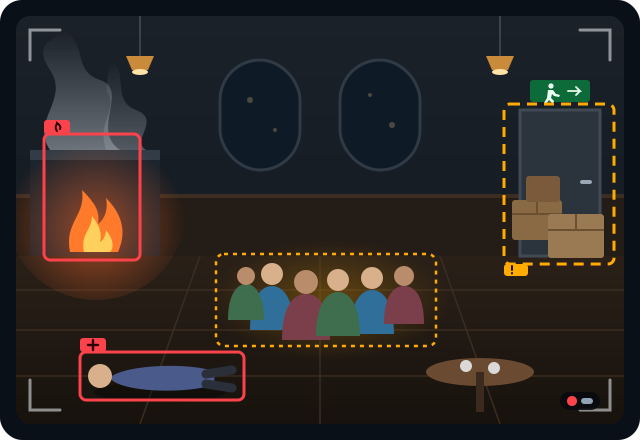
Security and safety
Configure security and safety rules on the cameras that cover each area of your site. Review alerts and their images in the event history.
-
Fire and smoke Visible flames or smoke anywhere a camera can see.
-
Person down A guest or staff member who has fallen and is lying on the floor.
-
Crowding Areas that become too crowded, such as the entrance or the waiting area.
-
Blocked exits Boxes, trolleys or furniture left in front of an emergency exit.
-
Suspicious behavior Flag visible behavior such as fighting for an operator to review.
-
Unattended baggage Flag stationary luggage after the configured wait when nobody is observed nearby.
-
Scene change detection Compare a camera with its saved view to detect sustained shifts, obstruction or loss of image.
Camera detection is an extra pair of eyes. It does not replace fire alarms, extinguishers or your safety procedures.
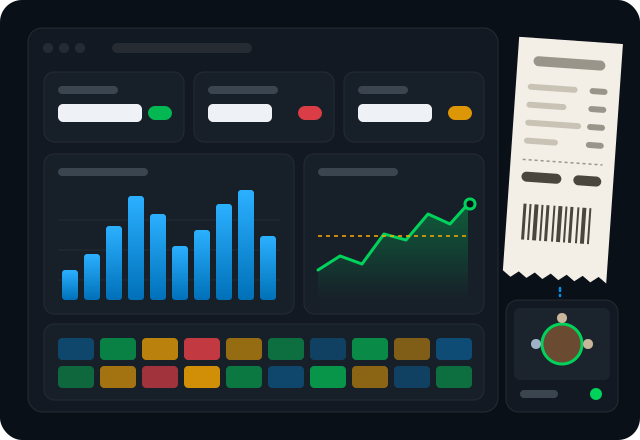
POS + CCTV reports
POS checks are matched to what the cameras saw at each table, so the numbers describe real service, not only sales. Every report says how much the cameras actually covered.
-
Service quality Waiting times against the warning and critical limits, and waiter visits per table.
-
Table use and seats Occupancy by hour, seat efficiency and a heatmap of the floor plan.
-
Walk-outs Parties that sat at least 2 minutes and left with no visit, check-in or POS ticket, with an estimate of the revenue lost.
-
Clearing times How long tables waited to be cleared, especially in busy periods.
-
Revenue per table POS checks joined with each seating, plus the demand pattern by hour. Any report can be exported to CSV.
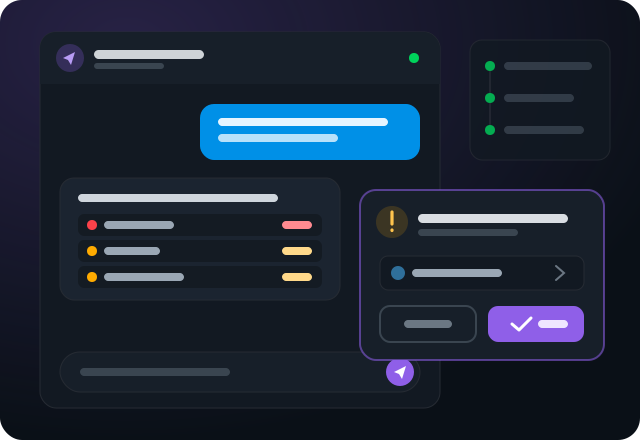
Operations assistant
Ask in plain words and get answers from live data: which tables are waiting right now, or how the waiters did this week.
-
Ask about the floor Unserved tables, waiting times, waiter efficiency and open compliance cases.
-
Confirm before any change Actions such as alerting a waiter or reviewing a compliance case always ask you to confirm first.
-
Permissions and audit Every request respects the user's role and scope and is written to the audit log.
How it works
- 1 Connect your cameras Use the CCTV cameras already installed in the dining room and the kitchen.
- 2 Link your POS Orders and checks are matched to tables, so reports combine service and sales.
- 3 Act on alerts and reports Alerts appear live in the console; managers review cases and reports in one place.